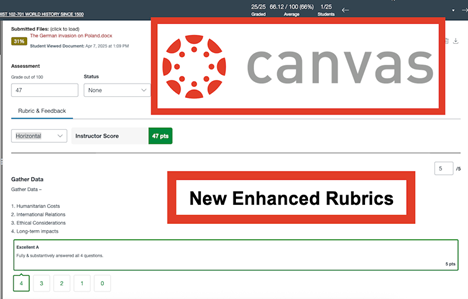
MyClasses has introduced Enhanced Rubrics to make creating, managing, and applying rubrics more intuitive for instructors. Whether you are building a new assessment or fine-tuning an old one, these updates streamline your workflow and offer more flexibility in how you provide feedback. What’s New? The Enhanced Rubrics interface brings several improvements to your course management: - Improved Navigation & Search: Easily locate specific rubrics with a new search bar and sort your rubrics by name, total points, or even by where they are currently used in your course.
- Flexible Editing: Toggle between different rubric types—such as Scale or Written Feedback—and choose whether to display ratings as levels or point values.
- Speedgrader Views: Within Speedgrader, you can adjust how you see your rubrics when grading with three different views – traditional, horizonal, or vertical
- Drag-and-Drop Organization: Rearrange criterion ratings using a simple click-and-drag icon. You can also duplicate existing criteria to save time when building complex rubrics.
- Archive vs. Delete: Not using a rubric this semester? Instead of deleting it and losing historical data, you can now Archive rubrics. This hides them from your active list while keeping them attached to past assignments.
- One-Click Duplication & Sharing: Need a similar rubric for another course? Use the Duplicate tool to create a copy in seconds, or the Copy To feature to send a rubric directly to another course or a specific assignment.
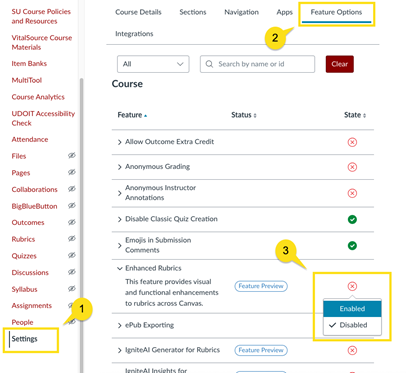
Pro Tip: Managing "In-Use" Rubrics To maintain grading integrity, Canvas limits edits on rubrics that are attached to more than one assignment. If you need to make changes to a rubric currently in use, simply use the Duplicate feature to create a fresh version, edit as needed, and swap it into your new assignment! Enable Enhanced Rubrics Ready to try it? Within your MyClasses course, navigate to the Settings link in your course navigation, select the Feature Options tab, locate Enhance Rubrics, and then slide the toggle button on. Once the feature is turned on, you’re ready to go! |